Introduction
In today’s digital era, having a website is essential for sharing knowledge, creating an online business, building a personal brand, or starting a blog. WordPress is the most popular platform for creating websites because it is user-friendly, flexible, and suitable for both beginners and experienced users.
This guide will take you through every step required to create a WordPress website from scratch. It includes practical examples, tips, and answers to frequently asked questions so you can create a professional website without prior technical knowledge.
What Is WordPress?
WordPress is a content management system (CMS) that allows you to create, manage, and publish content on the web without coding knowledge. It is open-source software, meaning it is free to use and constantly updated by a global community of developers.
WordPress can be used for:
- Blogs
- Business websites
- E-commerce stores
- Portfolios
- Educational websites
- Membership sites
WordPress.com vs WordPress.org
- WordPress.com: Hosted solution with limited customization and monetization options. Beginner-friendly but restricts control.
- WordPress.org: Self-hosted solution that gives full control over your website. Recommended for professional websites, long-term growth, and monetization.
Example: If you want to sell online courses, WordPress.org with a plugin like LearnDash is perfect. WordPress.com won’t allow advanced features.
Why Choose WordPress?
WordPress is beginner-friendly, scalable, and SEO-friendly. Its benefits include:
- Ease of Use: Drag-and-drop editors and pre-built templates make setup easy.
- Flexibility: Thousands of themes and plugins to customize your site.
- SEO-Friendly: Clean coding and plugins like Rank Math or Yoast help optimize your site for search engines.
- Scalability: Start small and expand your website as your traffic grows.
- Security: Security plugins protect your website from malware and hacking.
- Community Support: Forums, tutorials, and guides are widely available.
Tip: Start with a lightweight theme like Astra or GeneratePress for fast loading and flexibility.
Step 1: Decide the Purpose of Your Website
Before building a website, define your goal. Ask yourself:
- Are you creating a blog, business website, portfolio, or e-commerce site?
- Who is your target audience?
- What problems or solutions will your website provide?
Choosing a Niche
Selecting a focused niche improves search engine ranking and builds trust.
Popular niches include:
- Technology
- Health & Fitness
- Personal Finance
- Travel & Lifestyle
- Education
- Food & Recipes
Example: Instead of writing about general health, focus on “home workouts for beginners.” This helps target a specific audience.
Tip: Research competitors to find gaps you can fill with unique content.
Step 2: Choose a Domain Name
A domain name is your website’s online address (e.g., example.com). A good domain name is:
- Short and memorable
- Easy to spell
- Related to your niche
- Professional-looking
Tip: Use keywords if relevant. For example, if your niche is healthy recipes, try “HealthyBites.com” or “QuickHealthyMeals.com.”
Step 3: Buy Web Hosting
Web hosting stores your website files and makes them accessible online. Reliable hosting ensures your website loads fast and stays online.
Hosting Features to Look For
- Uptime ≥ 99.9%
- Fast servers for speed
- 24/7 support
- One-click WordPress installation
- Free SSL certificate
Recommended Hosting Options
- Shared Hosting: Budget-friendly, good for beginners
- VPS Hosting: More control and better performance
- Managed WordPress Hosting: Optimized for WordPress with automatic updates
Example: Bluehost and SiteGround are beginner-friendly options.
Tip: Always choose hosting close to your target audience to reduce page load times.
Step 4: Install WordPress
Most hosting providers offer one-click WordPress installation. Steps:
- Log in to your hosting dashboard
- Find the WordPress installer
- Enter site details
- Create admin username and password
- Click Install
Your website will be live within minutes.
Tip: Use a strong admin password to secure your website from the beginning.
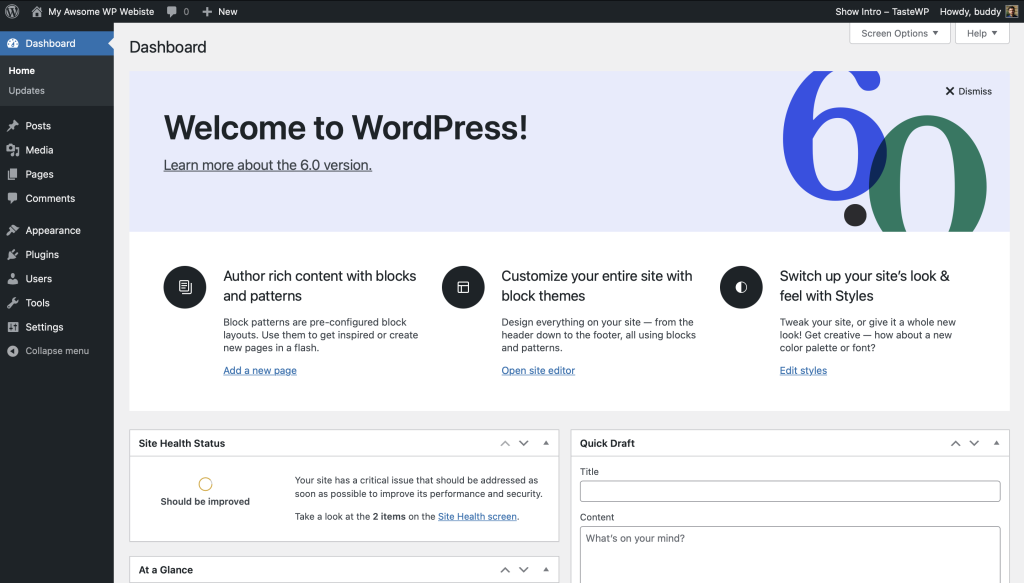
Step 5: Understand the WordPress Dashboard
The WordPress dashboard is where you manage content, design, and settings.
Key Sections:
- Posts: Create blog articles
- Pages: Create static pages like Home, About
- Appearance: Install and customize themes
- Plugins: Add new functionality
- Settings: Configure general site settings
Example Tip: Use the “Screen Options” button to customize which sections appear in the dashboard for easier navigation.
Step 6: Choose and Install a Theme
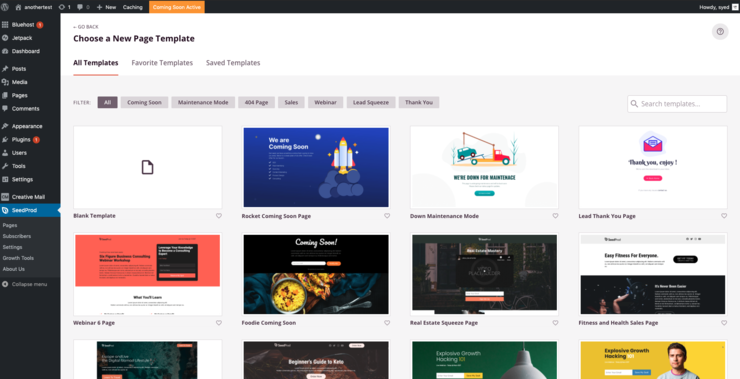
Themes control the look and feel of your website.
Recommended Themes:
- Astra: Lightweight, fast, and customizable
- GeneratePress: Great for performance and flexibility
- OceanWP: Offers free and premium designs
How to Install a Theme
- Go to Appearance > Themes
- Click Add New
- Search for your theme
- Click Install and then Activate
Tip: Choose a responsive theme to ensure your site looks good on mobile and desktop.
Best wordpress Theme Guide for bignners
Step 7: Install Essential Plugins
Plugins add extra functionality to WordPress.
Must-Have Plugins:
- SEO: Yoast SEO or Rank Math
- Security: Wordfence or Sucuri
- Caching: WP Rocket or W3 Total Cache
- Backup: UpdraftPlus
- Image Optimization: Smush
Example: Use Smush to compress images so your pages load faster.
Tip: Avoid installing too many plugins; it can slow your website.
Step 8: Create Important Pages
Essential pages include:
- Home: Main landing page
- About: Introduces you or your business
- Contact: Provides a way for visitors to reach you
- Privacy Policy: Important for legal compliance
- Terms and Conditions: Protects your content
Example Tip: Add a contact form using WPForms for easy communication with visitors.
Step 9: Configure WordPress Settings
Adjust site settings for usability and SEO:
- Site Title & Tagline: Clear and concise
- Permalink Structure: Use Post Name for clean URLs
- Reading Settings: Choose a static homepage or latest posts
- Discussion Settings: Enable/disable comments and manage spam
Step 10: Create High-Quality Content
Content is the heart of your website.
Content Tips:
- Original and useful
- Proper headings and short paragraphs
- Images and videos to engage readers
- Solve visitor problems
Example: For a fitness blog, provide step-by-step workout guides with images and instructions.
Tip: Always proofread content to avoid grammatical errors.
Step 11: Optimize Your Website for Search Engines
SEO helps your website rank in search engines.
SEO Basics:
- Use relevant keywords naturally
- Optimize meta title and description
- Add alt text to images
- Internal linking for navigation
- Fast-loading pages
Tip: Use Rank Math or Yoast SEO plugins for on-page SEO guidance.
Step 12: Secure Your WordPress Website
Security is critical.
Tips:
- Strong admin passwords
- Keep WordPress, themes, and plugins updated
- Use security plugins
- Enable SSL certificate
- Backup regularly
Example: Wordfence alerts you of suspicious login attempts.
Step 13: Improve Website Speed
A fast website improves user experience and SEO.
Tips:
- Lightweight themes
- Enable caching
- Optimize images
- Remove unused plugins
- Choose fast hosting
Example: GTMetrix or PageSpeed Insights can help monitor website speed.
Step 14: Maintain and Grow Your Website
Regular maintenance ensures smooth performance.
Tips:
- Publish new content regularly
- Monitor traffic and performance
- Fix broken links and errors
- Update SEO strategies
Example: Track traffic using Google Analytics to understand visitor behavior.
Common Mistakes to Avoid
- Choosing an unclear niche
- Copying content
- Installing too many plugins
- Ignoring mobile users
- Expecting instant results
Avoid these mistakes to save time and improve success chances.
FAQs
Q1: Do I need coding knowledge to use WordPress?
A1: No, WordPress is beginner-friendly and doesn’t require coding.
Q2: Can I monetize my WordPress website?
A2: Yes, using ads, affiliate marketing, selling products, or offering services.
Q3: How long does it take to create a WordPress website?
A3: A basic website can be set up in a few hours. Advanced websites may take longer.
Q4: Do I need paid hosting?
A4: Free hosting is available but paid hosting is recommended for speed, security, and control.
Q5: Can I change my theme later?
A5: Yes, WordPress allows you to change themes without affecting your content.
Conclusion
Creating a WordPress website is achievable for anyone with patience and consistency. By following these steps, adding valuable content, and using proper SEO, you can build a professional website that grows over time. Remember to maintain your site regularly, optimize speed and security, and focus on delivering value to your visitors.